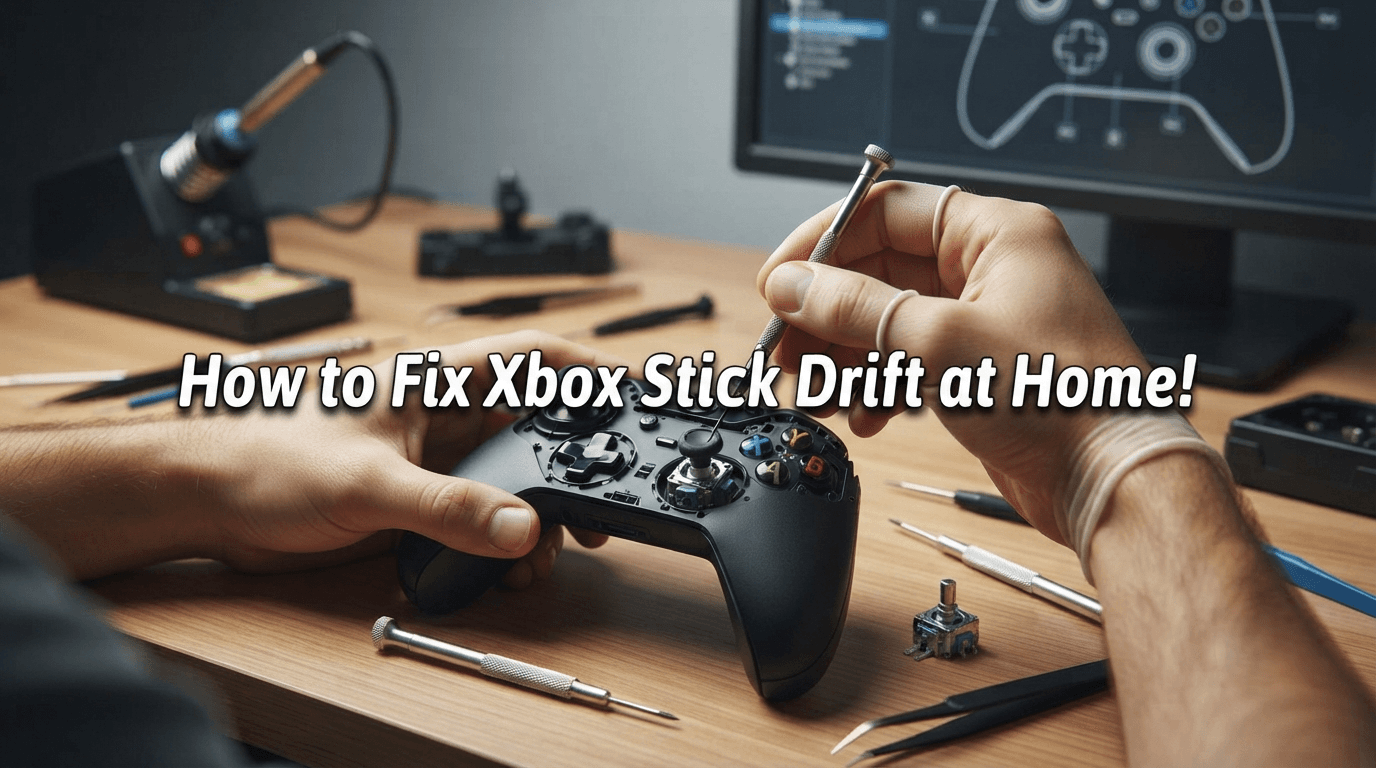

Are you dealing with stick drift on your Xbox controller? Here are effective, do-it-yourself solutions to fix analog stick issues without the need to purchase a new controller. These methods are practical, cost-effective, and easy to perform right at home. Read on to get your controller back in action!
Stick drift is a frustrating issue that many Xbox players have faced in 2026. However, you don't necessarily need to rush out and buy a new controller. In many cases, you can restore your controller’s precision through basic cleaning, firmware updates, or by adjusting deadzone settings within your software.
What Causes Xbox Stick Drift?
"Stick drift" is the term gamers use when a controller registers movement inputs without the analog stick being touched. This can occur on any controller, including the popular Xbox Series X model, typically due to the following factors:
1. Dust and Debris Accumulation
This is one of the most common causes. Over time, dust, sweat, skin cells, and debris can work their way under the analog stick housing. As this buildup thickens, it interferes with the sensor contacts, causing the system to misinterpret signals and register unintended movement.
2. Internal Sensor Wear and Tear
Standard Xbox controllers use potentiometer-based analog sensors, which rely on parts that constantly rub against each other. With heavy, continuous usage, internal carbon tracks and contacts wear down, causing the center point (deadzone) calibration to drift.
3. Usage Habits and Physical Impact
High-intensity gameplay—such as aggressive "clicking" of the analog sticks (L3/R3) or pushing the sticks to their absolute limits—along with accidental drops, can directly affect the internal springs and mechanisms. This often loosens or misaligns components, accelerating the onset of stick drift.
For more expert advice on maintaining your hardware, check out our Guides section. Also, to ensure your system responsiveness is perfectly calibrated, check our guide on Xbox Series X Best Settings 2026.
Simple DIY Fixes for Xbox Stick Drift
If your controller begins to drift, try these quick, actionable solutions before considering a replacement:
1. Clean with Isopropyl Alcohol
Dampen a cotton swab with 70%+ isopropyl alcohol and wipe around the base of the analog stick while rotating it. Let it dry for 5–10 minutes before use.
2. Use Compressed Air
Use a can of compressed air to blow out dust from the gaps around the base of the stick.
3. Adjust Deadzone Settings
Use the Xbox Accessories app to increase the deadzone slightly, causing the software to ignore minor, unintended movements.
Pro-tip: Consistent maintenance significantly reduces debris buildup. For more advice on keeping your accessories in peak condition, explore our full library of [Xbox Care & Maintenance Guides].
Fine-Tuning for Precision
Adjusting deadzone settings is a powerful way to mitigate drift without opening the controller. For competitive players who need high accuracy in shooters, proper calibration is essential—it creates a steadier aim and reduces hardware-induced errors, making Achievement Hunt sessions significantly more manageable.
Additionally, always ensure your controller firmware is up to date via the console. If you have tried all the above and the issue persists, it may be time to consider a warranty claim. If you are debating the cost-effectiveness of buying a new model, our Game Pass vs. PS Plus 2026 comparison can help you decide whether your current ecosystem—or an upgrade—best suits your gaming style. Among the Best Xbox Exclusives 2026, you'll want your controls to be flawless.
Ready to take your setup to the next level? Check out these resources to ensure your gear and performance are always at their peak Expert Maintenance Guides Keep your hardware running like new.